Today we will take a closer look at coding and computational thinking as cross-curricular tools we can use to enrich our curriculum, and potentially recommend tools our learners can use to aid them in their inquiries. I hope that there aren’t too many groans while I tell yet another fainting miniature goat story to illustrate an example of computational thinking. In the hands-on portion of today’s class, we will all create a “choose your own adventure” story with the Twine web application on our laptops, and optionally do a bit of fun coding!
Learning Objectives
- Describe how computation thinking can help learners become better problem solvers.
- Identify non-math-related opportunities for integrating coding and computational thinking into your subject area’s curriculum.
- Describe how computation thinking or coding can turn math abstractions into concrete form to aid students with their inquiries.
- Create a “choose your own adventure story” using Twine and then link to it from your topic reflection blog post.
Class Time
Let’s learn a bit more about what we mean when we talk about computation thinking in K-12 by watching the following Digital Literacy + Computation Thinking for Children video:
Skim SD 61’s Computational Thinking resource web page.
Watch this overview of a curriculum that can help you integrate computation thinking with English & Language Arts using fun and engaging coding activities:
Please reflect on possible ways could “coding” be used to enrich one of your favourite non-math subjects. Also, reflect on possible strengths and weaknesses of using coding in your classroom?
who knew the computational thinking was a lot like making a peanut butter and jam sandwich…
Hands-on Lab Time
Coding with Scratch by MIT
This is optional, but consider creating a Scratch account at MIT’s free Scratch website. You can use Scratch without creating an account, but you cannot save and share your programs with other people without an account. Note: Scratch is hosted by the Massachusetts Institute of Technology (MIT), and the data is stored in the USA and is subject to the US Patriot Act.
See what a finished, or nearly finished Scratch games look like by playing one of the games below in your favourite subject areas. This will allow you to see some examples of finished coding projects that are geared toward K-12 learners:
- Storytelling: Multimedia & Interactive Storytelling
- Social Studies: Equity vs Equality
- Physics: Ballistic Arcs with Artillery
- Math & geometry: Regiomontanus’ angle maximization problem
- Logic, Looping, & Fun: Star Catcher
OPTIONAL: Start work on one of the two coding activities to get a feel for what they are like:
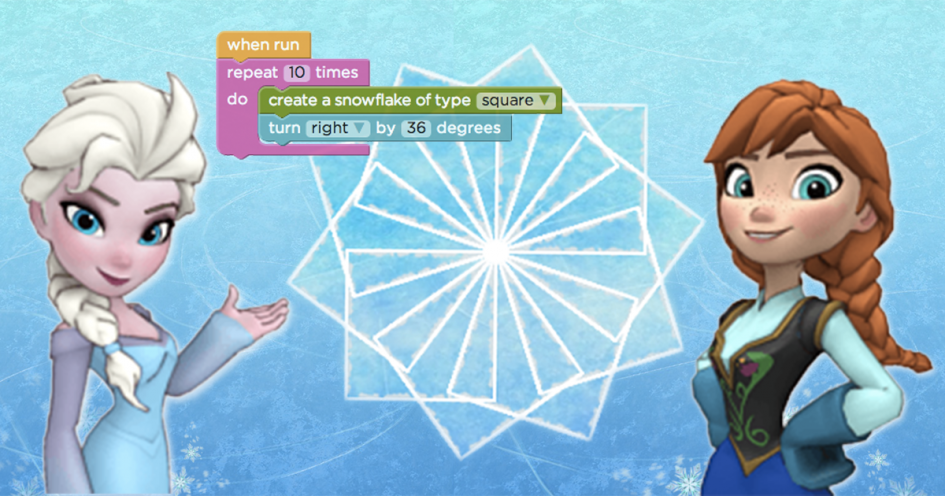
- Learn to code with Anna & Elsa from Frozen
- Learn to code with Flappy Birds (very fun!)
Vibe Coding a Alphabet Sound Board
There is no requirement to Vibe code in our class, but please review the vibe coding process below so that you are familiar with what . If you’d like, feel free to create your own Portuguese soundboard for a language of your choice (I see you French Imersion teachers 😉 That said, I will provide audio files for Portuguese, that you can use as places holders if you are vibe coding a soundboard for another language, but unless you record mp3 audio files for the language you chose you will be stuck with Porgutuese.
Portuguese Soundboard Step-by-Step
Here are the steps I used to vibe code the Brazilian Portuguese Sound Board web application:
- You can use any Generative AI tool, for this activity but for coding I’d recommend using either Google Gemini (which comes free with Gmail) Claude for this assignment as it currently does as good a job as Google’s Gemini and is much more user friendly for people who do not have a “code editor” already installed on their laptops:
- Copy and paste the following prompt into your GenAI tool (feel free to change the language of course) and then press Enter on your keyboard:
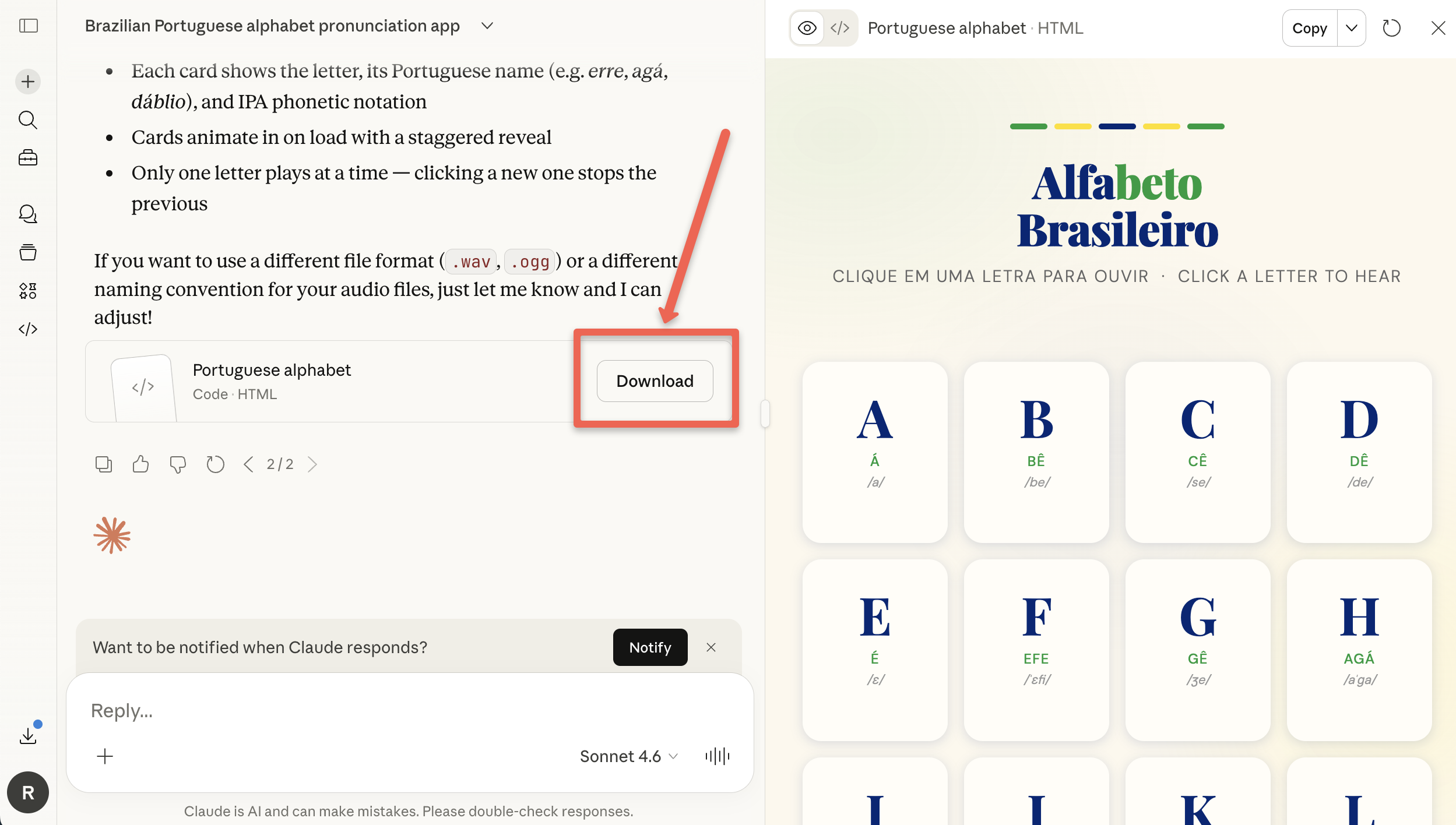
I’d like to create a HTML web application, to help people learn to say the letter of the Brazilian Portuguese alphabet properly. When a user clicks on a letter the web app will use the computer speaker to correctly pronounce the letter. I will provide the sound files for each Portuguese letter, and put them in a directory called “assets” and the filenames will be all lowercase. Put a phonetic pronunciation for English language speakers under each letter. Here is an example of what I would like for the alphabet of a different language: https://dom-aya.github.io/ayajuthem-soundboard/ - Next we need wait a minute or two for Claude to create the HTML file for you. Once you see the Download button, click on it and make note of where you saved it on your laptop.
- Download the zip file that contains all the MP3 audio files for each Portuguese letter to the same folder where you downloaded the HTML file Claude created for you:
- Download the Portuguese audio for each letter in the zip file called: assets.zip
- Find the assets.zip file on your laptop and unzip it. On a Mac you simply double-click on the file and it will unzip. On Windows you right mouse click on the file and select Extract All…
- Now that you have the audio files folder in the same place as the HTML file you downloaded, you can open it in your file manager by double clicking on it and it should be making sounds for each of the letters.
- If you created the Soundboard in Claude, it should look something like this: https://richmccue.github.io/brasil-letters/portuguese.html
- If you are having any problems, please let Rich know and he can give you a hand in a breakout room.
- If you are creating a Hul’q’umi’num sound board, or sound board for a alphabet with glottal stops, you should follow up with this prompt: Change the letter mapping to the letter files with the letters that have a glottal stop so that for example the c’ file name is: c_glottal.mp3
Reflection: Are there any web based game you’d like to try creating?
Reflection:
- How might the language revitalization teacher include some of their high school learners in helping to develop the tutorial further?
- Do any ideas come to mind for customized web based tutorials or games that could help your learners in the discipline that you plan on teaching?
Flappy Orca Game?
Give this a try. Instead of giving the GenAI tool a detailed list of instruction for your “Flappy Orca” game, ask for it to help you.
- For example you could try this prompt: I want to create a HTML web based flappy birds game except with an Orca instead of a bird, and for gates seaweed instead of pipes. Help me create a prompt that to create the game.
- How did the detailed prompt look? Try copy and pasting the suggested prompt into the GenAI tool and see how it does making the game.
- Does the game work? If so is it playable? Often the games will be too difficult. For example if the game is scrolling to fast and the seaweek gates are too narrow, you could follow up with this prompt: Make the scroll 50% slower, and the seaweed gate openings 40% larger.
- Continue to tinker with your game.
- GO FURTHER: You could enrich the game by adding salmon for the Orca to eat (for an extra 2 points per salmon and the plastic bags for the Orca to avoid (-1 point for ever bag eaten). Here’s a sample prompt: Add the additional game play of salmon for the Orca to eat (for an extra 2 points per salmon and the plastic bags for the Orca to avoid (-1 point for ever bag eaten) in addition to the 1 point the player gets when the pass through a gate.
Interactive Storytelling with Twine
Twine is an open-source tool that can be used to create stories that are interactive and non-linear. Twine can be used for other purposes including Guided Interviews or storytelling including embedded images, video, and audio if desired. Twine can also create game-based experiences which give readers options and choices throughout the the story.
All reader choices and selections in Twine stories are saved locally in the readers’ web browser and there is also no need to create an account, which means that there are little to no privacy concerns when using Twine in educational settings.
This workshop is primarily hands-on practice with Twine in order to learn to get some experience and be able to create your own interactive story. Please watch the following short introductory video for Twine to prepare you for the hands-on activities (note: we will be using the Online version of Twine in our class):
Please work through at least the first Twine workshop activity below, and if you enjoy it please feel free to work through the other activities as well:
- Create your first Twine Story
- Here is the sample Cree story, Napi and the Rock that uses some innovative coding techniques to help make the story a language revitalization tool.
- Below is the code to flip words back and forth between English and another language. In this example the Spanish words displayed are “Buenos Dias” and the English words are “Good Morning.”
|2>[(link-rerun:"[Buenos Dias]")[(show:?1)(hide:?2)]]|1)[(link-rerun:"[Good Morning]")[(hide:?1)(show:?2)]]Topic Blog Post
In your topic blog post, please include a photo, video, or screenshot of your Vibe Code project, Twine Story or Coding project and respond to two of the following prompts (or make your own critical evaluation of this topic or technology):
- Describe how computation thinking could help learners become better problem solvers.
- Identify potential non-math-related opportunities for integrating computational thinking and/or coding into your language revitalization curriculum.
- Reflect on the pros and cons of possibly using Twine in the classroom.
- Reflect on the pros and cons of possibly using Vibe Coding in the classroom.
- OPTIONAL: Link to a vidbe code, Twine or coding project you created.
- Submit your blog URL to the Brightspace assignment for this topic.
Note: Catch up on previous Topic Blog Posts and submit them to BrightSpace!

Leave a Reply